3. Initial labeling
Generate suggestions
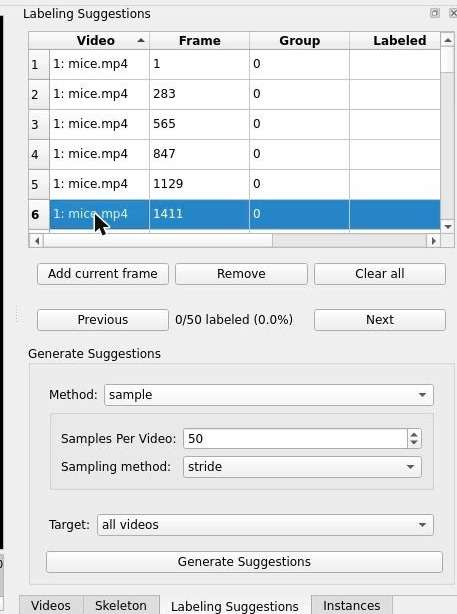
- Switch to the Labeling Suggestions tab.
-
Set Method to sample and Samples Per Video to 50 (it defaults to 20).
Leave Sampling method on stride — that's what makes the suggestions evenly spaced through the video, so suggestion 6 lands on frame 1411 as used below.

-
Click Generate Suggestions.
You will now see the list of suggested frames populated with the 50 sampled frames:
Labeling the first frame
In SLEAP, instances are a copy of the skeleton set to a specific pose on an animal.
We label a frame by creating an instance for each visible animal.
-
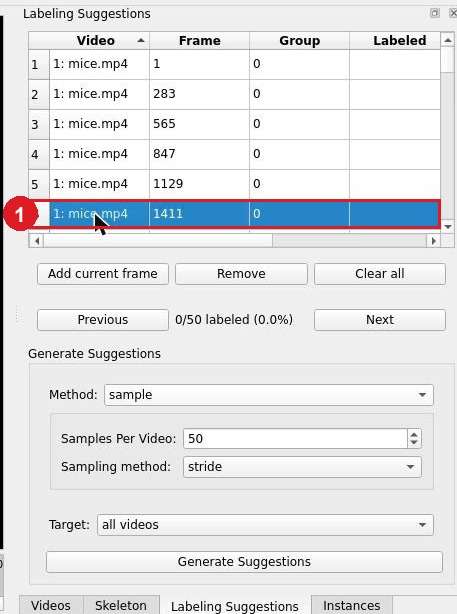
Let's start with an easy frame. In the Labeling Suggestions, double-click on suggestion 6 (frame 1411):
-
To create an instance, right-click anywhere on the video → Default:

Tip
Want to make the nodes a bit easier to see? Try these settings:
- View → Edge Style → Wedge
- View → Node Marker Size → 12
- View → Node Label Size → 18
If you're in the VM, we also recommend putting your browser in full-screen mode.
-
Drag the nodes to their correct locations on the animal:

Tip
To zoom in and out, use the scroll wheel on your mouse, or the two-finger scroll gesture on your touch pad.
-
For the next animal, right-click anywhere on the video → Default. This will make a copy of the first instance:

Then, adjust the nodes to their correct locations on the second animal.
Tip
To quickly move the entire instance, hold Alt (PC) or Option (Mac) while dragging any node of the instance.
Save the project
SLEAP projects contain everything including videos, skeleton, labeling suggestions, and the actual labeled frames and instances.
The project is saved in a single file with the .slp extension and can be easily moved across computers or shared with others. Videos and labeled images are not contained in this file, only their file paths.
If you move the video files or open the project on a different computer, SLEAP will just ask you to locate the videos if it can't find it automatically, so don't be afraid to move those .slp files around!
Let's save the project with what we've done so far:
-
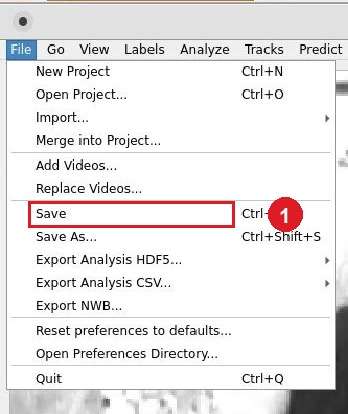
Click File → Save:
-
In the dialog that appears, click Save.
Saving is required before training
SLEAP will refuse to start training or inference while the project has unsaved changes:
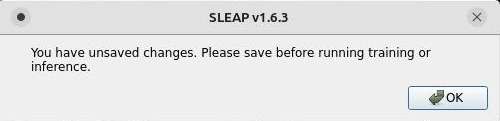
This comes up again later too — running inference adds predicted frames, which makes the project "unsaved" again. Save (Ctrl+S or File → Save) whenever you're about to train or predict.
Tip
Don't forget to save often (Ctrl+S or File → Save) so you don't lose your progress!
You did it! 